Photo Illustration by Mateusz Slodkowski/SOPA Images/LightRocket via Getty Images
Many folks have a love-hate relationship with Apple’s iCloud service. On one hand, the backup feature is great for capturing everything on your device. It basically makes a carbon copy of your phone, freezing your data, settings, files, and the rest in carbonite and leaving it there until you need it. It’s one of the most robust backup services available, in my humble opinion.
When it comes to phone backups, it’s not a matter of if you’ll need it but when.
On the other hand, iCloud backup can take a huge chunk out of the measly 5 GB of storage Apple has offered to customers since iCloud launched in 2011. If I was a betting man, I’d guess you either haven’t backed up your iPhone in ages because you ran out of cloud storage years ago, or like me, you begrudgingly pay Apple every month for enough storage to save everything in your precious device.
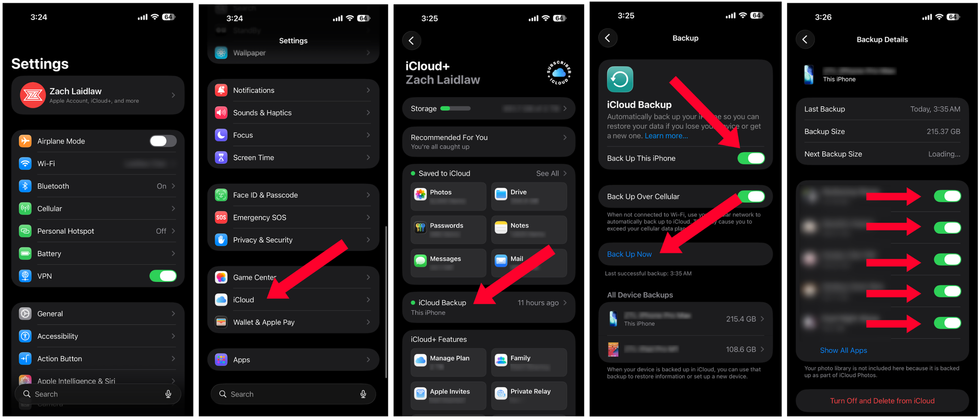
Wherever you stand, device backups are non-negotiable if you value all the information stored in your phone. Here’s how to enable iCloud backup now:
 Screenshots by Zach Laidlaw
If you want to optimize your iCloud backup settings even further, there are a couple things you can do. First, find “This iPhone” under the “All Device Backups” section and tap on it. Once you’re inside, uncheck any app that you don’t want to save. This could slim down your device backup and free up bits of valuable storage.
You can also completely remove old devices from the “All Device Backups” section. Simply click on the device, scroll to the bottom, and select “Turn off and Delete from iCloud.” Congrats! Your iCloud storage is now several gigs lighter.
BONUS TIP: iCloud backup works on iPad, too, but it’ll count against your cloud storage limit, so keep this in mind.
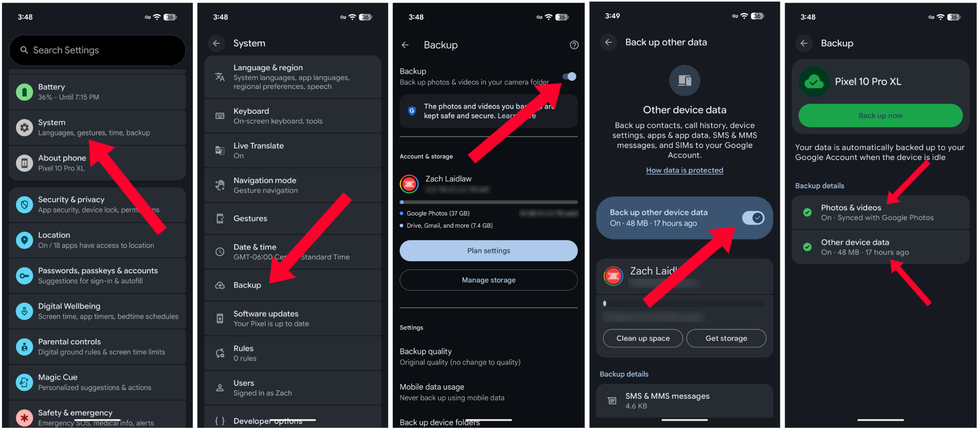
Regardless of make and model, all Android phones sold in the USA come with Google’s built-in cloud backup service that’s designed to save your most important data, including photos, videos, messages, call history, apps and data, and device settings. You can enable Google backup on your Android by following the quick steps below.
RELATED: Do blue-light glasses actually work?
 Photo by Michael M. Santiago/Getty Images
Note: Depending on your device and Android version, these steps may look a little different, but as long as you get to the backup section within your device settings, you will be able to save the correct data. For reference, the following screenshots were taken on a Google Pixel running Android 16.
 Screenshots by Zach Laidlaw
Keep in mind that many of these saved pieces count against your 15 GB of free Google Drive storage, so if you run out, you won’t be able to back up your phone completely until you upgrade your cloud storage with a Google One plan.
While Google’s backup service keeps most of your data safe in the cloud, there are some holes in its system. For instance, Google backup may not save the settings on all of your apps; currently, developers have to opt in to allow this, and while many apps do support it, there are plenty of apps that don’t. Google’s backup solution also doesn’t save local files on your device, including documents in your Downloads folder or password-protected secure folders. Make sure you manually move these to another device or cloud service before you reset your old phone.
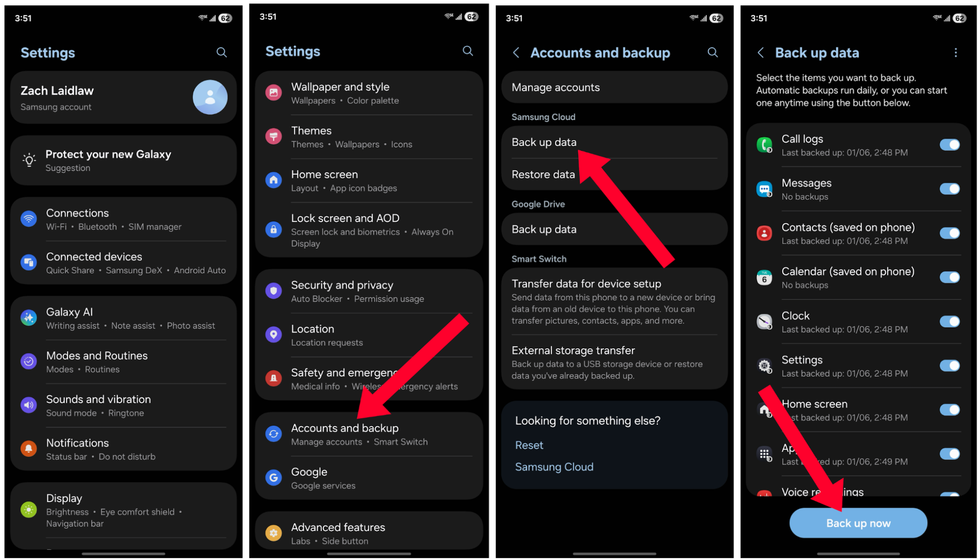
Google backup works perfectly fine on Samsung phones, but Galaxy owners need to take some extra steps to back up Samsung’s first-party apps. In order to save your call logs, messages, alarm clocks, voice recordings, home screen layouts, and settings, you need to enable Samsung Cloud via the following steps:
 Screenshots by Zach Laidlaw
While Samsung Cloud backups do count against your 15 GB storage limit, there are no upgrade plans, so Samsung won’t prompt you to buy more. They also offer a 30-day temporary backup option that’s completely free. There are also limitations to what you can save. For example, Samsung can’t back up any files that are synced with other accounts (i.e., your Google contacts will sync to your Google account, not your Samsung account), and it won’t save any backup files larger than 1 GB.
When it comes to phone backups, it’s not a matter of if you’ll need it but when. For everyone who received a new phone for Christmas, a backup is vital to getting your new device running exactly like your old one. It doesn’t stop there, though. Your phone could fall to the bottom of a lake, or it could get swiped by a thief, or your favorite pet could mistake it for a chew toy. Whatever happens to your device, make sure your backups are on and set to save new data automatically every night. You’ll save yourself a lot of trouble in the future.