David Paul Morris/Bloomberg via Getty Images
So you got a new phone. Now what? Whether you just unboxed a big and bold iPhone or you’re giving the latest shiny Android handset a spin, there are several things you’ll need before, during, and after you get it all set up. Jump ahead, and you could completely break the setup experience. Follow these steps in order, though, and your new phone will be ready to roll in no time with all your data intact.
Both iPhones and Android phones require an account to set them up properly. If this is your first smartphone, you will need to either create an Apple or Google account from scratch or choose an existing account that you have used with other devices in the Apple or Google ecosystems. If you’re upgrading from an old smartphone, however, you already have the account you’ll need for your new device. Either way, make sure you have your login email address and password handy. You’ll need both of them soon.
Tip: Always make sure your login information is saved somewhere safe. Keep it written down in a vault, store it in a digital password manager (both Apple and Google have their own native password managers built into their operating systems), lock it in a diary, or commit it to your photographic memory (if you have been so blessed). No matter what you do, record your login info and make sure you never lose it. Recovering account credentials is much harder than storing them properly in the first place.
Next, you’ll need to back up your old phone. A cloud backup makes a copy of all the data, apps, and settings on your old device so that your new device can re-download them and set everything back up exactly as you left it. For a detailed tutorial, check out our complete phone backup guide. Otherwise, use the search function in the “Settings” app to find your device’s backup options.
Tip: If you don’t have enough cloud storage to back up your phone properly, both iPhone and Android offer local quick setup options that let you send your personal information to the new device by holding both phones side by side. That said, even if you choose this option, it’s still a good idea to keep a cloud backup of your device in case it is ever lost, stolen, or destroyed.
Okay, now it’s time to turn on your new phone. Power it up, log in with your email address and password, and follow the instructions to restore your new phone from your cloud backup or through the quick-start option. Either route pulls the same information into your new device, and they both take about the same amount of time to completely re-download your apps and restore your settings. Depending on how much data you have saved on your old device, expect to set aside 30 minutes to several hours for a complete device restore.
Tip: If you’re switching from iPhone to Android or vice versa, you won’t be able to download an exact copy of your old phone, but you can still pull over a lot of your personal data. To get started, download the Android Switch app to your old iPhone or the Move to iOS app to your old Android phone, open the app, and follow the prompts to migrate as much information as possible.
 Photo credit: Apple Support
Your SIM card is the little chip in your phone that interfaces with your cellular carrier so that you can make calls, send text messages, and surf the web. If your new and old phones still use physical SIM cards, you can simply pop the card out of your old phone using a SIM ejector pin (or a paper clip will do) and insert it into your new device.
However, many new phones have moved to digital eSIM cards. Even more confusing, some carriers will allow you to move your eSIM card from one device to another through their apps, which you can download from the App Store or Google Play. Other carriers require you to call their customer support line and provide some information to complete the switch.
Whichever option fits your carrier, go ahead and move your cell service to your new device now before you do anything else.
WARNING: It’s much harder to move an eSIM from your old phone to your new phone after the old one is erased. Do not erase your old phone until your service is activated on your new device.
After your new device is set up and your carrier service is activated, thumb through it briefly to make sure all your data, apps, and settings were transferred properly. This step is important, because once you erase your old device, there’s no going back. After you know everything is in order, open the Settings app on your old phone.
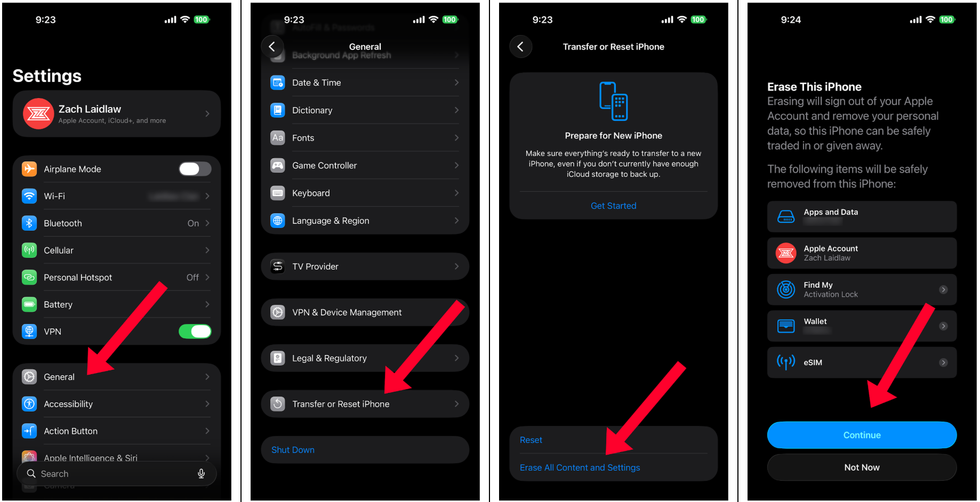
For iPhone owners, select “General,” swipe down, and tap “Transfer or Reset iPhone.” Hit “Erase All Content and Settings,” then “Continue.” From here, Apple may prompt you for your lockscreen passcode and your iCloud password. Type these in to erase your old device. The old phone will cycle through a reboot, and once you see the “Hello” screen, you’re all done.
 Screenshots by Zach Laidlaw
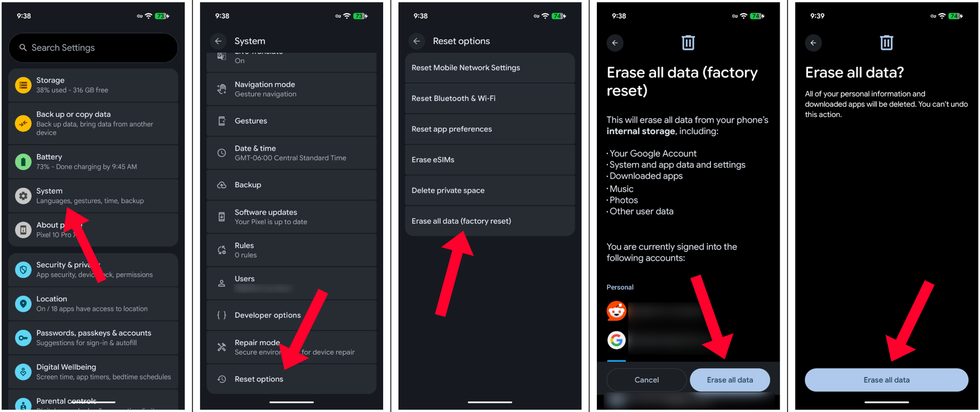
For Android owners, tap on your Google account at the top of the page, select your account email address, then “manage accounts on this device.” Under the “Personal” section, select your email address one more time and remove the account from your old phone. It’s important that you remove your Google account first; otherwise your old device will show up in your account for another month or two.
 Screenshots by Zach Laidlaw
Once that is done, go back to the main Settings app page and choose “System.” Scroll all the way down, select “Reset options,” tap on “Erase all data (factory reset),” then “Erase all data” again. You’ll need to enter your lockscreen PIN, confirm one more time that you want to erase all data, and you’re done.
 Screenshots by Zach Laidlaw
The last thing you need to do is get rid of your old phone. If you received your new device as a gift, you can sell your old phone outright in an online store, like Facebook Marketplace, Craigslist, etc. You might also be able to sell it to a retailer, like Best Buy, for store credit or simply recycle it with no payout.
If you purchased your phone — or plan to purchase one — in person, many stores offer trade-in options to turn over your old device in exchange for money off your new one.
Whichever option you choose, don’t simply throw your phone away in the trash. Most electronic devices come with lithium-ion batteries that can explode when compressed by a trash compactor or put under the extreme heat of an incinerator. Always recycle old gadgets responsibly.
That’s it! Now that your new phone is set up and your old phone is long gone, you’re ready to enjoy your device for many years to come. Just make sure your cloud backup settings are turned on in case of accidents, theft, or future upgrades. You never know when your new device will become your old one.