
whitebalance.space/Getty Images
Visual Intelligence was introduced to iPhone with iOS 18, but unless you had the right phone or knew where to look, you probably didn’t even know it was there. Or what it does. This year, the feature makes the jump into the Camera app for easier access. Here’s how to find it and put it to use.
When Visual Intelligence launched in 2024, it was actually an iPhone 16 series exclusive. Within the next year, support trickled down to iPhone 15 to bring more users into the fold. Naturally, every new iPhone newer than that also received the feature, including the brand-new iPhone 18 Pro Max, which we reviewed here.
It’s a neat tool.
As the name implies, Visual Intelligence uses AI to help users decipher the world around them through the camera lens of an iPhone. With a photo, it can speak text out loud, like on a restaurant menu or inside a book; translate foreign languages you might come across while abroad; and use AI to understand objects. It’s a neat tool for those times you encounter something in public and you want to know more about it.
Previously to invoke Visual Intelligence, you had to either hold down the Camera Control button on the side of compatible iPhones or summon it with an icon hidden away in Control Center. Needless to say, it was easy to miss unless you knew exactly where to look. The latest iOS 27 update hopes to change that, as Visual Intelligence is now baked directly into the main Camera app.
RELATED: Not all new iPhones are worth it. This one blows them all away.
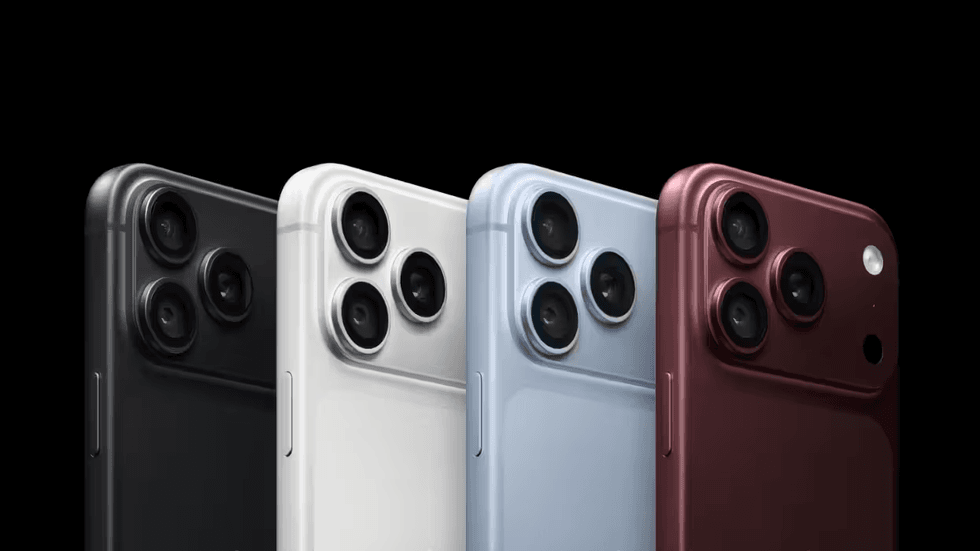 iPhone 18 Pro Max Models/Apple
Now when you open the Camera app, you’ll find a new “Siri” tab to the right of the main “Photo” screen. Swipe left to reveal a brand-new interface with the Siri logo in place of the on-screen camera button. Point your camera at an object, tap the button, and Siri will generate a response that pops down from the top of the display to explain what you’re looking at.
Alternatively, tap the comment box in the bottom left corner of the display to take a photo of the object in front of you and immediately launch into a chat thread about that object. Here, you can ask Siri questions about the object or, in my case, argue whether or not Siri actually got the object right. More on that in a second.
If you want to find similar objects for reference or to purchase, tap the photo with the magnifying glass on the bottom right corner of the screen, and Siri will launch a pop-out menu with results from connected apps, like Google, Amazon, Walmart, the Shop app, and TikTok.
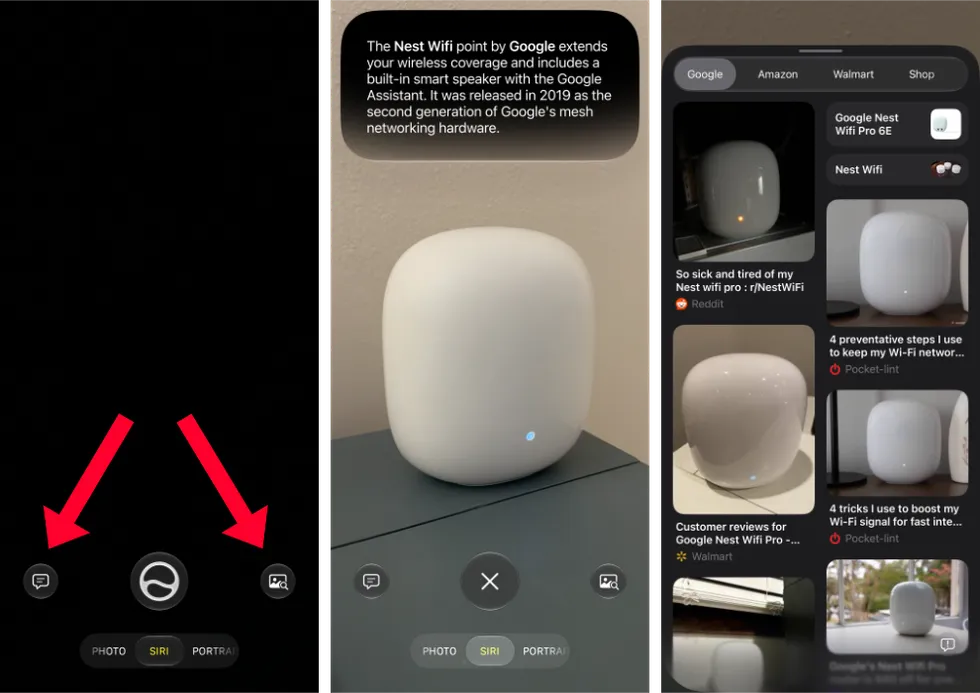 Visual Intelligence Camera on iOS 27/Getty Images
Overall, Visual Intelligence is handy, but it’s not perfect. While I was snapping an image of my Google Nest Wi-Fi router, Siri mistook it first for an Apple HomePod and then a router made by another brand. It did eventually get it right, though, so that’s the important thing.
On the flip side, it immediately identified my Apple Magic Keyboard and Apple Magic Mouse. For whatever reason, it seems to understand Apple-branded products quite well.
Your mileage may vary.
Visual Intelligence is available in the Camera app on compatible devices running iOS 27. That means you’ll need to update to the latest software to access it this way. If you’re on iOS 26, you can still reach Visual Intelligence, but you’ll have to hold down the Camera Control on the side of your phone or bring it up in Control Center. If you don’t have a Camera Control button (with the exception of Apple iPhone 16e models), then your phone likely doesn’t have Visual Intelligence at all.
Like Blaze News? Bypass the censors, sign up for our newsletters, and get stories like this direct to your inbox. Sign up here!