
Yurii Karvatskyi/Getty Images
Until now, Google Gemini has been an optional part of Android. Most of its features are locked behind the dedicated Gemini app, or you can choose to rely on Google Assistant as your on-device companion for fielding questions and completing tasks. That is all about to change, though, as Google officially prepares to retire its old assistant for an AI future, and it is coming sooner than you think.
Google brought Gemini to Android in early 2024. Since then, the company has progressively injected its AI into every corner of its operating system. The latest iteration, Gemini Intelligence, aims to take its chatbot a step farther by giving it agentic capabilities. At launch, the only way to set Gemini as your default personal assistant instead of Google Assistant was to manually make the switch in your settings. Many newer phones, however, default to Gemini straight out of the box.
You aren’t allowed to delete it from your phone. You can, however, take away its functionality.
Needless to say, if you have avoided Gemini like the plague thus far, your efforts are commendable, but your luck is about to run out.
Starting on September 4, Google will start rolling out Gemini support as the default personal assistant in all applicable Android models — devices with 2 GB of RAM or more that run on Android 9 or later. The process will take several weeks to reach everybody, so you may not lose access to Google Assistant immediately. However, once it is complete, Gemini will take over as the default assistant on your handset, whether you like it or not.
It’s not just your phone, either. The switch is coming to all devices in Google’s product ecosystem, including tablets running Android, car infotainment systems with Android Auto, smartwatches running on Wear OS, and TVs with Google TV or Android TV. In other words, you can’t escape it … but you might be able to turn it off, if you know where to look.
To disable Gemini on a Samsung Galaxy device, open the Settings app, select “Apps” near the bottom of the page, and tap “Choose default apps” at the top. From there, tap “Digital assistant app,” and choose either an alternative to Google or select “None” from the options. Now, when you invoke the digital assistant on your phone, absolutely nothing will happen. Your digital assistant is effectively gone.
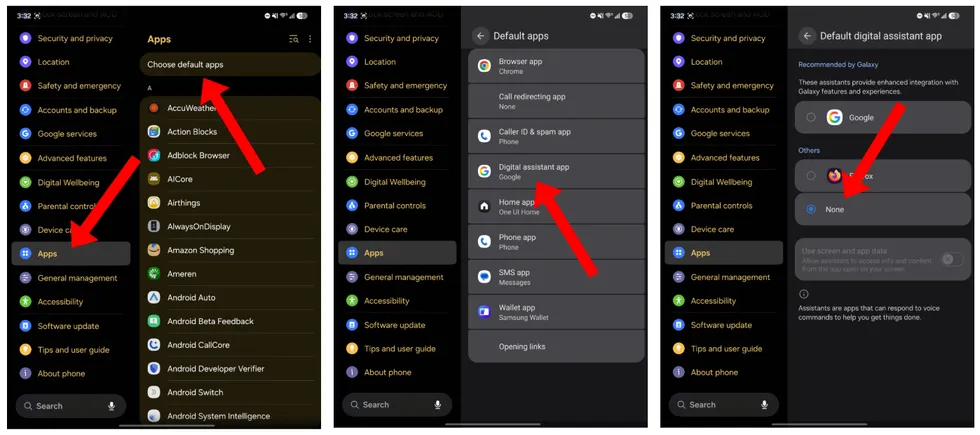 Screenshots by Zach Laidlaw/One UI 9.0 on Samsung Galaxy Z Fold 8
For Google Pixel phone owners, open up the Settings app and choose “Apps” near the top of the page. Next, select “Default apps,” followed by “Digital assistant app,” and finally, choose “None” or an alternative option to Google, if applicable. Congrats, now your phone no longer has an AI-powered digital assistant!
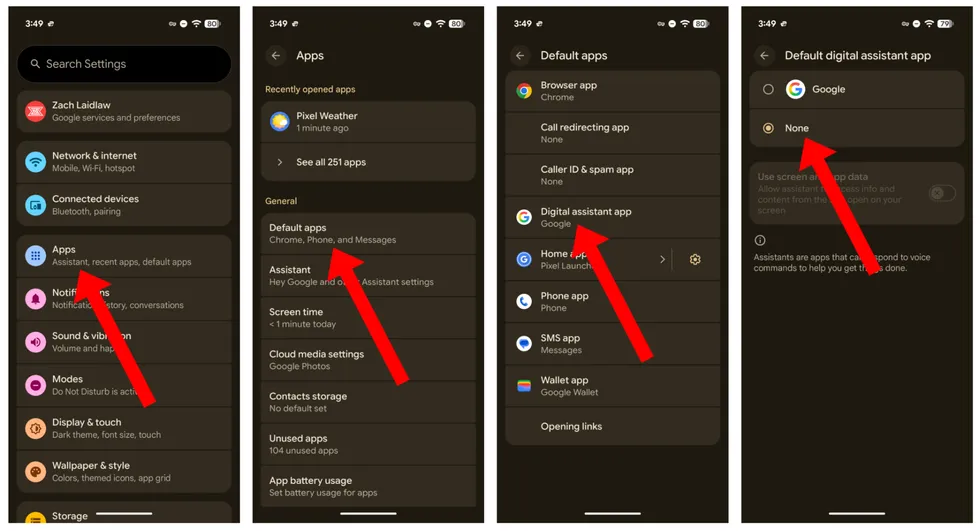 Screenshots by Zach Laidlaw/Android 17 on Google Pixel 10 Pro XL
If you use an “other” branded Android phone, such as a Motorola, OnePlus, Nothing, etc., the process should be similar to the steps above. The main goal is to find the default apps section in your settings and change the digital assistant to anything other than Google. Once you do that, you’re free from Gemini! Well, sort of. There’s more …
Google has also baked Gemini into many of your favorite apps, including Gmail, Maps, and Drive, but this should only work if you have Personal Intelligence enabled. To check, open the Gemini app on your phone, select “Personal Intelligence,” and then “Connected Apps.” From here, uncheck every app and service that’s enabled. There are a lot of integrations on this page, so make sure you scroll all the way to the bottom and get every single one.
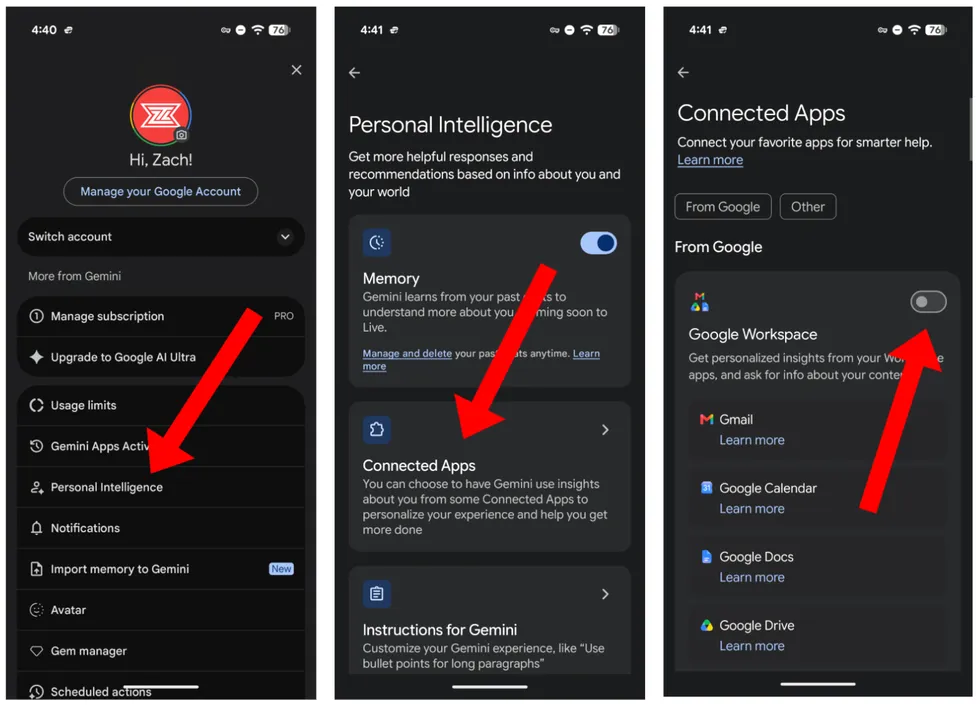 Screenshots by Zach Laidlaw/Android 17 on Google Pixel 10 Pro XL
Now that we’ve fired Gemini from its digital assistant role and banished it from Google apps, there’s one last thing to do, and this one comes with an unavoidable caveat.
Some new phones these days, especially from Samsung and Google, come with the Gemini app installed by default, and you aren’t allowed to delete it from your phone. You can, however, take away its functionality.
RELATED: Google forced age restrictions onto Android. Are they right for you?
 yourstockbank/Getty Images
To disable Gemini on Android, simply swipe into your app drawer and locate Gemini in the app list. Hold your finger on the app for several seconds to bring up the secondary menu, and choose the “i” icon that indicates “App info.” Next, tap on the “Disable” switch. You’ll get a warning message to try to convince you to change your mind. Ignore that, disable the app anyway, and you’re all set. You will no longer see Gemini in your app drawer, and it will cease to work.
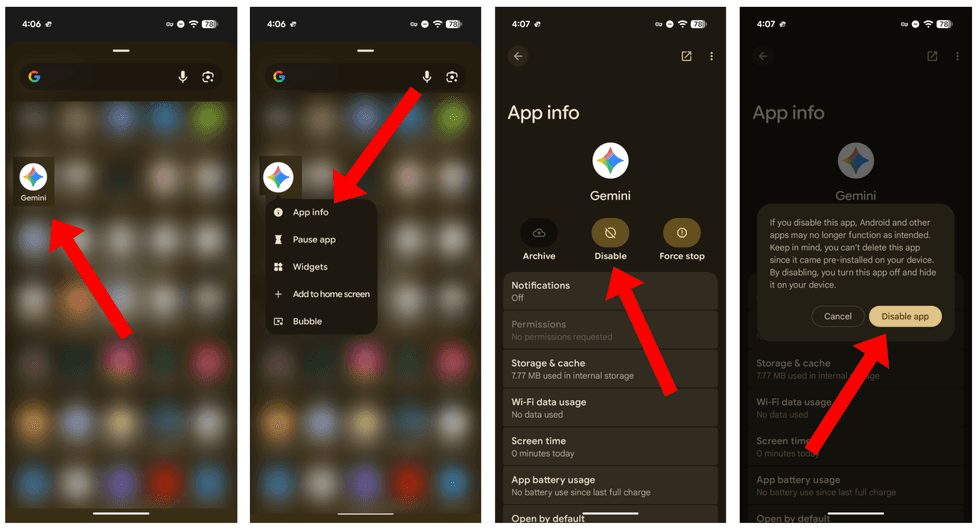 Screenshots by Zach Laidlaw/Android 17 on Google Pixel 10 Pro XL
As expected, it’s not easy to pry Gemini’s grubby claws out of an Android device. The service is ubiquitous, and as Google triples down on its AI strategy, it will only become more prevalent throughout its operating systems. However, if Gemini is not something you want anywhere near your phone and your data, these steps will help you reclaim some of your privacy and peace of mind.